Images to SVG Converter
Convert your images into scalable SVG files with our free Image to SVG Converter. Upload JPG, PNG, WebP, BMP, GIF, TIFF, and other image formats, then download high-quality SVG files in seconds.
Images are used everywhere, from websites and mobile apps to business logos and printed banners. Most everyday images are stored as JPG, PNG, WebP, BMP, or GIF files. These are called raster images because they are made from tiny pixels.
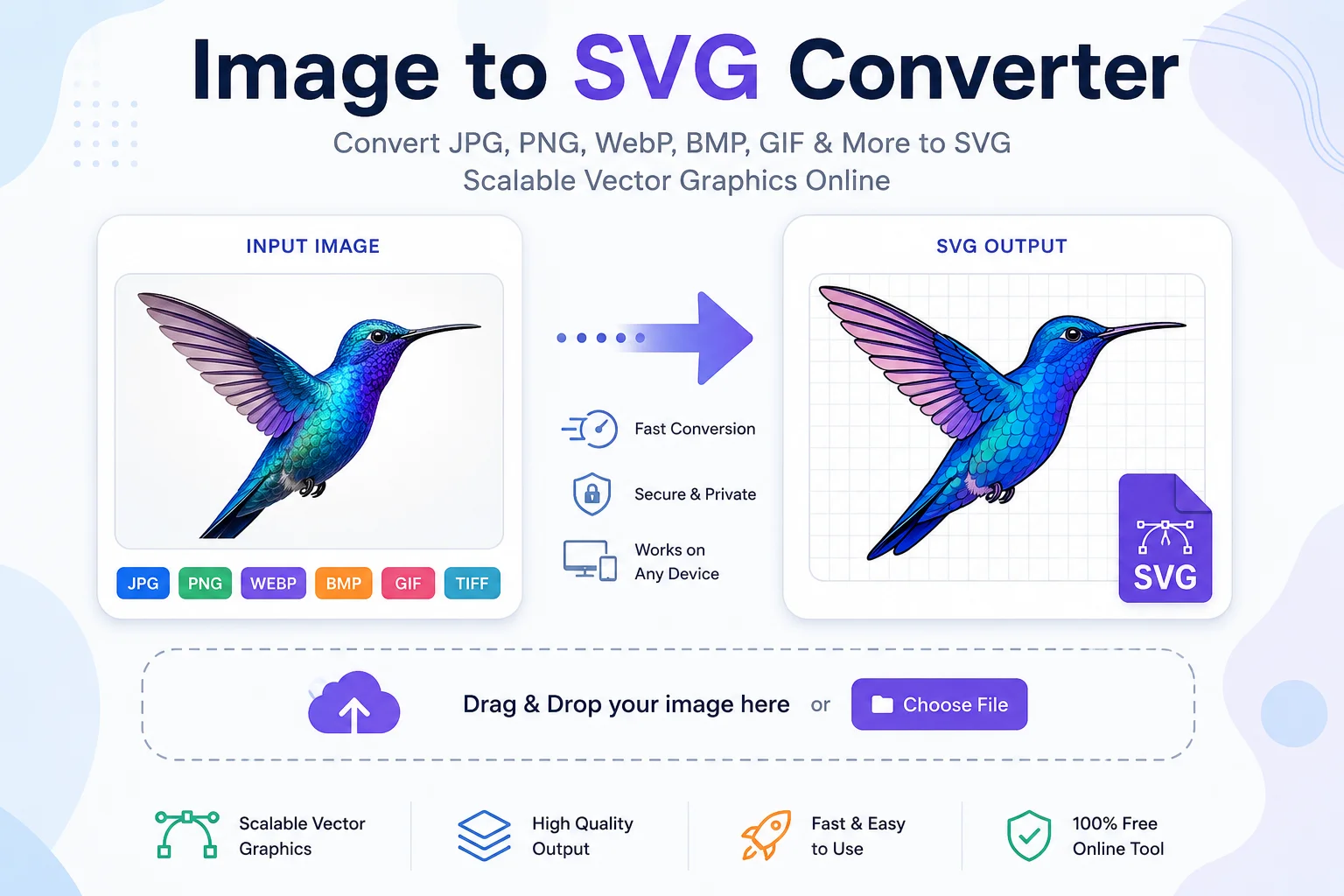
An Image to SVG Converter changes a raster image into an SVG (Scalable Vector Graphics) file. Unlike raster images, SVG files are made from shapes, paths, and mathematical instructions instead of pixels. This means you can resize an SVG without losing image quality. SVG is an open standard developed by the World Wide Web Consortium (W3C).
Whether you are designing a logo, creating icons, preparing files for cutting machines, or building a website, an Image to SVG Converter can save time and improve image quality.
What Is an SVG File?
SVG stands for Scalable Vector Graphics.
Instead of storing millions of pixels, SVG files describe graphics using XML code that defines lines, curves, shapes, colors, and text.
Because SVG uses mathematical data, the image remains sharp at any size—from a small website icon to a large billboard.
Raster Images vs SVG Images
Raster Image SVG Image Made of pixels Made of vector paths Loses quality when enlarged Keeps perfect quality at any size Larger for simple graphics Usually smaller for logos and icons Best for photographs Best for logos, icons, illustrations Formats: JPG, PNG, WebP Format: SVGWhat Does an Image to SVG Converter Do?
An Image to SVG Converter analyzes the uploaded image and traces its edges, shapes, and colors to create vector paths.
The result is an SVG file that can be resized without becoming blurry.
Many converters use image tracing (also called vectorization) to recreate the original image as vector shapes. Tools such as Inkscape use tracing technology based on Potrace for many workflows.
Supported Input Formats
Most Image to SVG converters accept:
Input Format Supported JPG ✔ JPEG ✔ PNG ✔ WebP ✔ BMP ✔ GIF ✔ TIFF ✔ HEIC ✔ (tool dependent) AVIF ✔ (tool dependent) ICO ✔How to Use an Image to SVG Converter
Using the tool is simple.
- Step 1: Upload your image.
- Step 2: The converter analyzes the image.
- Step 3: It traces the image into vector paths.
- Step 4: Preview the SVG output.
- Step 5: Download the SVG file.
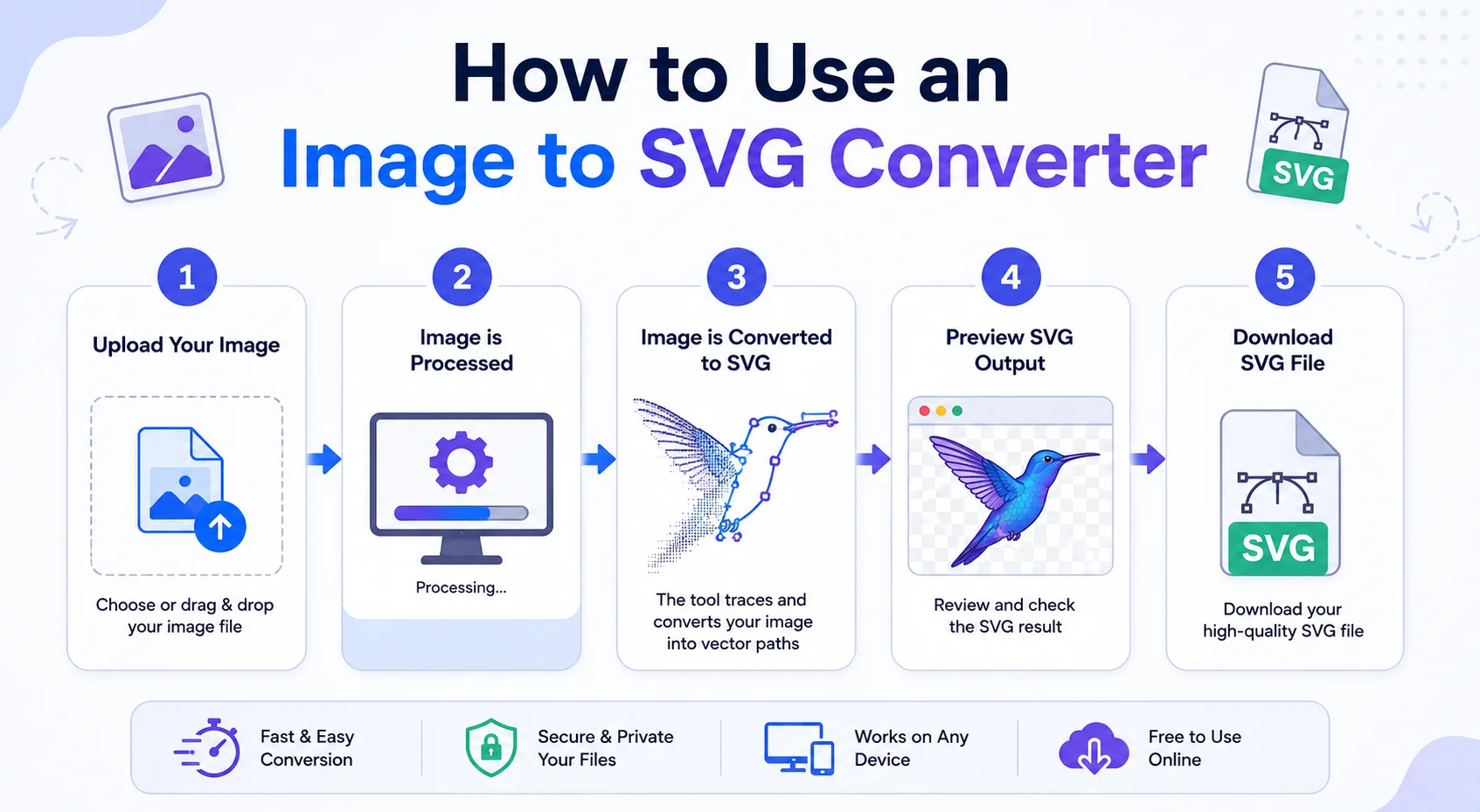
The whole process usually takes only a few seconds for simple graphics.
Best Images for SVG Conversion
SVG works best with:
- Logos
- Icons
- Simple illustrations
- Clip art
- Line drawings
- Black and white artwork
- Sign designs
- Stickers
- Technical diagrams
These images have clean edges that are easier to trace accurately.
Images That May Not Convert Perfectly
SVG conversion is more difficult for:
- High-detail photographs
- Landscape images
- Portrait photos
- Complex textures
- Images with shadows
- Images with heavy gradients
Although converters can process these images, the resulting SVG may contain thousands of vector paths and larger file sizes.
Benefits of SVG Files
Infinite Scaling
SVG images stay sharp at any size.
Smaller File Size
Simple graphics often become much smaller than PNG files.
Web Friendly
Modern browsers support SVG directly.
Easy Editing
SVG files can be edited using vector software like Inkscape or other SVG editors.
Great for Printing
Perfect for banners, business cards, T-shirts, and stickers.
Common Uses of SVG Files
- Website logos
- Mobile app icons
- Company branding
- Business cards
- Laser cutting
- CNC machines
- Cricut projects
- Vinyl cutting
- Graphic design
- UI illustrations
- Flowcharts
- Infographics
Features of Our Image to SVG Converter
Our tool is designed to make image conversion fast and simple.
Fast Conversion
Convert images within seconds.
High-Quality Output
Produces clean SVG files suitable for many projects.
Browser-Based
No software installation required.
Free to Use
Convert images without paying.
Secure
Files are processed without unnecessary storage (depending on your implementation).
Works on Any Device
Compatible with desktops, tablets, and smartphones.
Tips for Better SVG Results
For the best output:
- Use high-resolution images.
- Choose logos instead of photographs.
- Use images with clear edges.
- Remove noisy backgrounds.
- Increase image contrast before uploading.
- Use black-and-white artwork whenever possible.
These steps help the tracing algorithm produce cleaner vector paths.
Advantages and Limitations
Advantages Limitations Infinite scaling Complex photos may not trace well Crisp printing Large photos can create huge SVG files Easy editing Manual cleanup may be needed Great for logos Not ideal for every image Web optimized Fine details may be simplifiedFrequently Asked Questions
Is SVG better than PNG?
SVG is better for logos, icons, and illustrations because it scales without losing quality. PNG is better for detailed photos and screenshots.
Can I convert JPG to SVG?
Yes. Most Image to SVG converters support JPG images.
Will SVG lose quality?
No. SVG files are resolution-independent and remain sharp when resized.
Can I edit an SVG file?
Yes. SVG files can be edited with vector graphics software such as Inkscape or other compatible editors.
Is SVG suitable for websites?
Yes. SVG is widely supported by modern web browsers and is commonly used for icons, logos, and interface graphics.
Conclusion
An Image to SVG Converter is a useful tool for anyone who needs scalable, high-quality graphics. It converts raster images like JPG and PNG into SVG vector files that remain sharp at any size. SVG is ideal for logos, icons, illustrations, web graphics, printing, and cutting machines.
For the best results, start with a clean, high-quality image that has simple shapes and clear edges. While photographs can also be converted, simple graphics usually produce the most accurate and editable SVG files.