Images to ICO Converter
Convert images to ICO format online in seconds. Our free Image to ICO Converter supports JPG, PNG, WebP, BMP, GIF, TIFF, SVG, AVIF, and HEIC. Create high-quality Windows icons and website favicons with no software installation required.
Image to ICO Converter
An Image to ICO Converter helps you create Windows icon (.ico) files from common image formats such as JPG, PNG, WebP, BMP, GIF, TIFF, AVIF, HEIC, and SVG. ICO files are mainly used for Windows applications, desktop shortcuts, and website favicons.
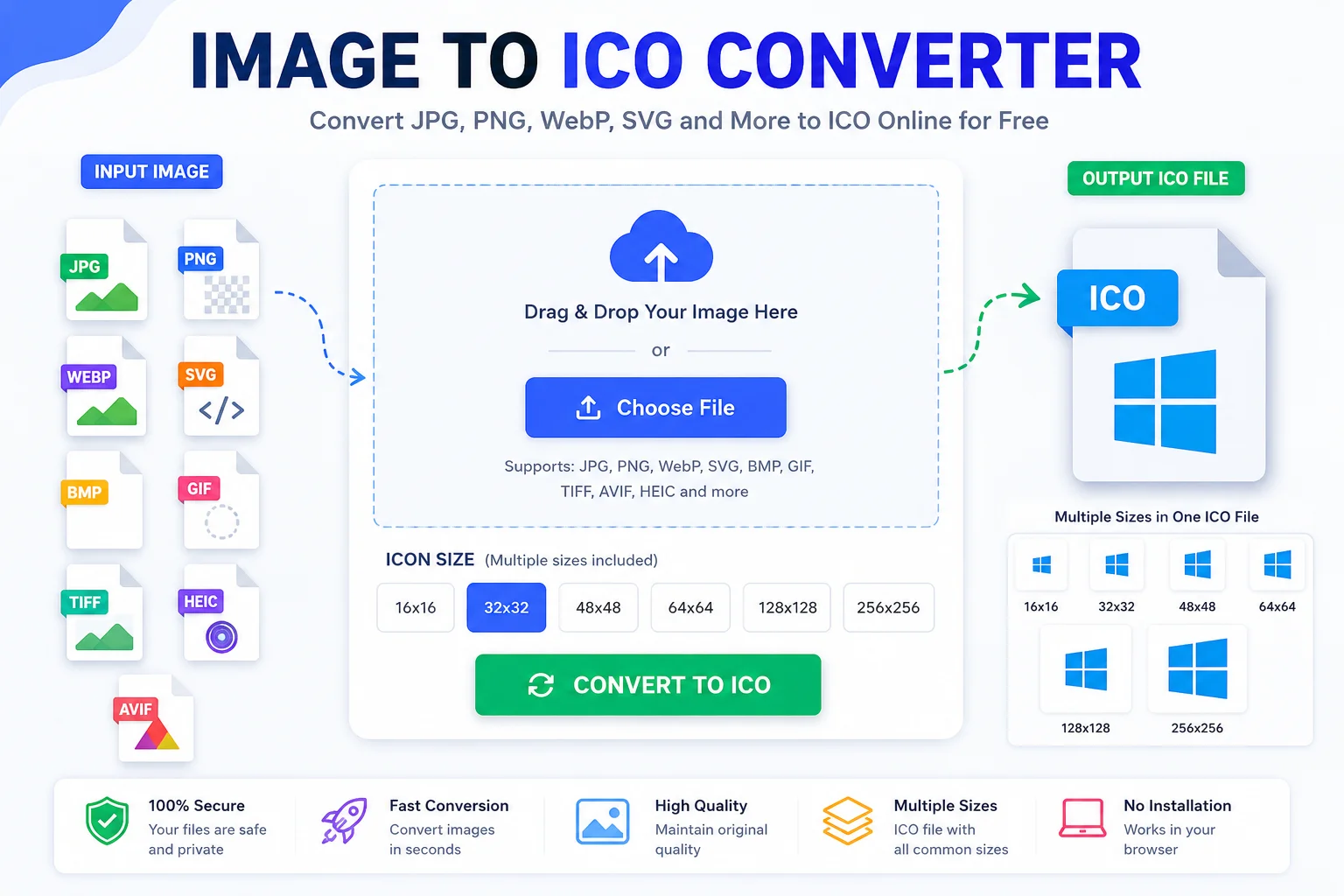
Whether you're a web developer creating a favicon, an app developer designing software icons, or simply customizing Windows folders, an Image to ICO Converter makes the process quick and easy.
According to Microsoft's Windows documentation, ICO files can contain multiple images at different sizes inside a single file. This allows Windows to display the best icon size automatically depending on where it appears.
What Is an ICO File?
An ICO file is the standard icon format used by Microsoft Windows. Unlike regular image files, an ICO file can store multiple versions of the same icon with different sizes and color depths.
For example, a single ICO file may include:
Icon Size Common Use 16×16 Browser favicon, small icons 32×32 Desktop shortcuts 48×48 File Explorer 64×64 High-DPI displays 128×128 Modern Windows apps 256×256 Large desktop iconsWindows automatically selects the most suitable size for each situation.
What Is an Image to ICO Converter?
An Image to ICO Converter is an online tool that converts popular image formats into Windows ICO files.
Most converters support:
- JPG to ICO
- PNG to ICO
- WebP to ICO
- BMP to ICO
- GIF to ICO
- TIFF to ICO
- SVG to ICO
- AVIF to ICO
- HEIC to ICO
The conversion usually takes only a few seconds.
Why Convert Images to ICO?
ICO files are required in many Windows and web development projects.
Common uses include:
- Windows desktop applications
- Website favicons
- Folder icons
- Software icons
- Executable (.exe) icons
- Game launchers
- Custom shortcuts
Without an ICO file, Windows cannot properly display custom application icons.
Features of an Image to ICO Converter
A good converter should offer:
- Fast online conversion
- High-quality output
- Support for multiple image formats
- Transparent background support
- Multiple icon sizes
- Drag-and-drop upload
- Secure processing
- No software installation
- Works on desktop and mobile
Supported Input Formats
Image Format Supported JPG ✅ JPEG ✅ PNG ✅ WebP ✅ BMP ✅ GIF ✅ TIFF ✅ SVG ✅ AVIF ✅ HEIC ✅Output Format
Output Description ICO Windows Icon FileHow to Use an Image to ICO Converter
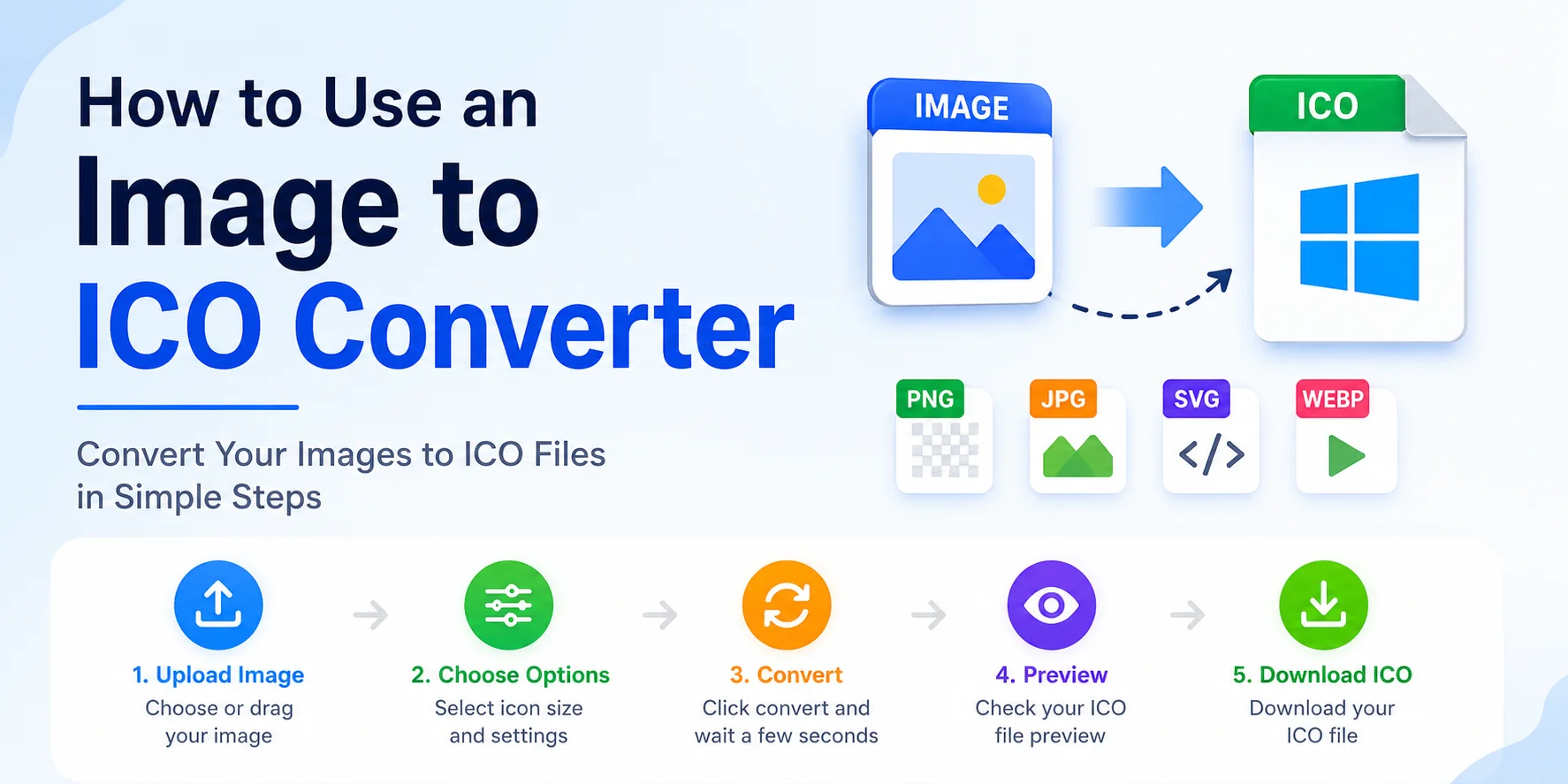
Creating an ICO file is simple.
- Upload your image.
- Choose the desired icon size if available.
- Click the Convert button.
- Wait a few seconds while the tool processes your image.
- Download the generated ICO file.
That's it!
Best ICO Sizes
Different projects require different icon sizes.
Size Best For 16×16 Browser favicon 24×24 Toolbar icons 32×32 Desktop shortcuts 48×48 Windows Explorer 64×64 Modern UI 128×128 Applications 256×256 High-resolution displaysMicrosoft recommends including multiple icon sizes inside one ICO file whenever possible.
Benefits of Using an Image to ICO Converter
Quick Conversion
Most images are converted within seconds.
No Installation
Everything works directly in your browser.
Easy to Use
No technical knowledge is required.
High Compatibility
ICO files work across all supported versions of Windows.
Multiple Sizes
Many tools generate several icon sizes in one file.
Transparent Background
PNG transparency can usually be preserved during conversion.
ICO vs PNG
Feature ICO PNG Multiple image sizes ✅ ❌ Windows icon support ✅ Limited Transparency ✅ ✅ Favicons ✅ Supported by modern browsers, but ICO remains widely used Desktop shortcuts ✅ ❌Common Uses of ICO Files
ICO files are widely used for:
- Windows software
- Desktop shortcuts
- Folder customization
- Website favicons
- Browser tabs
- Application installers
- Development projects
Tips for Better ICO Files
For the best results:
- Use a square image.
- Start with a high-resolution image (at least 256×256 pixels).
- Keep the design simple.
- Leave enough spacing around the icon.
- Use transparent backgrounds whenever possible.
- Avoid too much small text.
Is an Image to ICO Converter Safe?
Most browser-based converters are safe when they process files securely and delete uploads after conversion. If you're working with sensitive images, choose a trusted converter that clearly explains its privacy practices.
Frequently Asked Questions
What is an ICO file?
An ICO file is the Windows icon format that can contain multiple image sizes in one file, allowing Windows to display the best version automatically.
Can I convert PNG to ICO?
Yes. PNG is one of the most commonly used formats for creating ICO files because it supports transparency.
Can JPG be converted to ICO?
Yes. JPG images can be converted to ICO, although JPG does not support transparent backgrounds.
What is the best size for an ICO file?
A 256×256 source image is ideal because it can be scaled down to smaller icon sizes while maintaining quality. Microsoft recommends including multiple icon sizes in a single ICO file.
Can ICO files contain transparency?
Yes. Modern ICO files support 32-bit color with an alpha channel, enabling smooth transparent edges.
Can I use ICO files as website favicons?
Yes. The ICO format was originally developed for Windows and remains a common choice for website favicons because it can include multiple icon sizes in one file.
Conclusion
An Image to ICO Converter is an essential tool for developers, designers, and anyone who needs Windows-compatible icons. It quickly converts images like JPG, PNG, WebP, SVG, GIF, BMP, TIFF, AVIF, and HEIC into the ICO format while preserving quality and, when supported, transparency.
By creating properly sized ICO files, you ensure that your application icons, desktop shortcuts, and website favicons look sharp across different screen sizes and Windows interfaces.