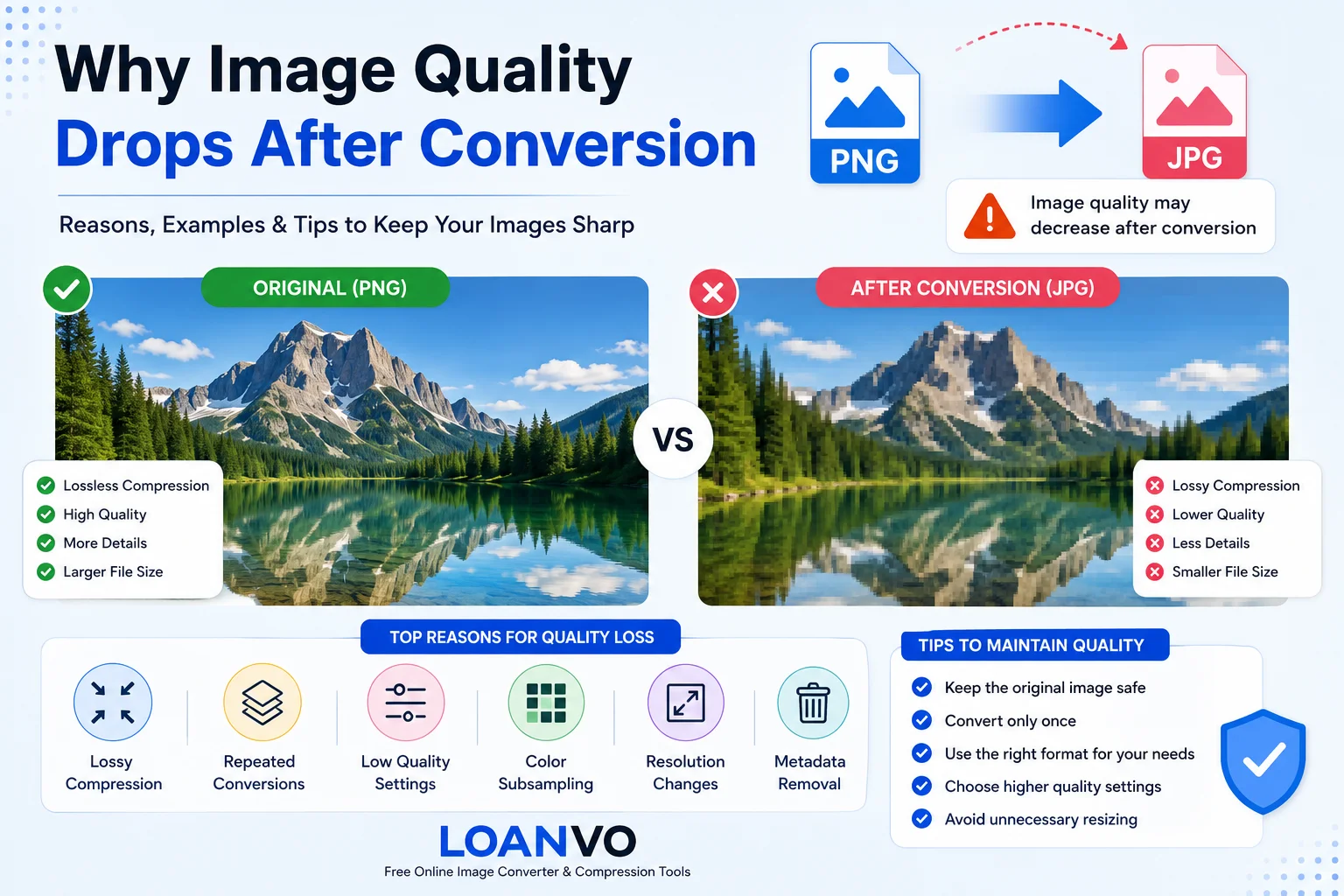
Have you ever converted an image from PNG to JPG or JPG to WebP, only to notice that it looked blurry, pixelated, or less sharp than the original? If so, you're not alone. Many people believe that the image converter caused the problem, but in most cases, the real reason is the image format and the way it compresses data.
Every image format is designed for a specific purpose. Some formats focus on keeping the highest possible quality, while others are designed to reduce file size for faster loading on websites and mobile devices. During conversion, the image may be compressed, resized, or re-encoded, which can affect its quality.
In this beginner-friendly guide, you'll learn why image quality drops after conversion, what happens behind the scenes, and how to keep your images looking their best.
What Happens During Image Conversion?
Image conversion changes a file from one format to another. For example, you might convert a PNG image into JPG, WebP, AVIF, or another format.
During this process, the converter may:
- Change the image compression method.
- Re-encode the image data.
- Adjust color information.
- Remove unnecessary metadata.
- Preserve or remove transparency, depending on the target format.
Not every conversion reduces quality. The result depends on the original image, the destination format, and the quality settings used during conversion.
Understanding Image Compression
One of the biggest reasons image quality changes is compression. Compression reduces the file size so images are easier to store and faster to upload or download.
There are two main types of image compression.
| Compression Type | Quality | File Size | Common Formats |
|---|---|---|---|
| Lossy | Some image data is permanently removed | Smaller | JPG, Lossy WebP, Lossy AVIF |
| Lossless | Original image data is preserved | Larger | PNG, Lossless WebP, Lossless AVIF |
Lossy compression removes information that the human eye is less likely to notice. This creates much smaller files, but some detail is permanently lost.
Lossless compression keeps all the original image information while still reducing file size. Because no image data is discarded, the quality remains the same after compression.
According to Google's web.dev documentation, lossy compression is ideal when reducing file size is more important than preserving every detail, while lossless compression is better when image accuracy matters, such as for graphics, screenshots, and logos.
Why Image Quality Drops After Conversion
Several factors can cause a converted image to lose quality. Understanding these reasons helps you choose the right format and settings.
1. Converting to a Lossy Format
The most common reason is converting an image into a format that uses lossy compression.
For example:
- PNG → JPG
- PNG → Lossy WebP
- PNG → Lossy AVIF
When this happens, some image information is intentionally removed to reduce the file size.
This usually affects:
- Fine textures
- Tiny details
- Sharp edges
- Color transitions
On photographs, the quality loss may be difficult to notice. However, on screenshots, text, icons, and logos, it can become obvious.
2. Repeated Image Conversion
Another common mistake is converting the same image multiple times.
For example:
Original Photo
↓
JPG
↓
JPG
↓
JPG
↓
JPG
Each time a lossy image is saved again, the compression process removes additional information. This is known as generation loss.
Even if the quality setting remains the same, repeated conversions gradually reduce sharpness and introduce compression artifacts.
Google's WebP documentation recommends keeping the original image instead of repeatedly converting already compressed files.
3. Low Quality Settings
Many image converters allow users to choose a quality percentage.
For example:
| Quality Setting | Expected Result |
| 100% | Highest quality, larger file |
| 90% | Excellent balance |
| 80% | Small quality loss |
| 60% | Visible artifacts may appear |
| Below 50% | Blurry images and blocky compression become noticeable |
Lower quality settings create much smaller files, but they also remove more image data.
If you choose an extremely low quality level, the image may appear blurry or contain visible squares, often called compression artifacts.
4. Color Information Is Reduced
Some lossy image formats simplify color information using a technique called chroma subsampling.
Human eyes are more sensitive to brightness than color differences, so image formats reduce certain color details while keeping brightness nearly unchanged.
Although this usually works well for photographs, it can reduce the quality of:
- Text
- Logos
- User interface screenshots
- Graphics with sharp color edges
This is one reason screenshots often look worse when saved as JPG instead of PNG.
5. Resolution Changes During Conversion
Sometimes image converters resize an image while changing its format.
For example:
- 4000 × 3000 pixels
- converted to
- 1920 × 1440 pixels
The file size becomes much smaller, but fewer pixels remain.
Less resolution means fewer details, making the image appear softer or blurry, especially when viewed on large screens or printed.
Always check whether the converter is changing the image dimensions if maintaining quality is important.
6. Transparency May Be Removed
Some formats support transparent backgrounds, while others do not.
For example:
| Format | Supports Transparency |
| PNG | Yes |
| WebP | Yes |
| AVIF | Yes |
| JPG | No |
If a transparent PNG is converted into JPG, the transparent areas must be replaced with a solid background color, usually white.
Although this does not reduce image sharpness, it changes the appearance of the image and may make it unsuitable for logos or graphics.
Common Image Conversion Examples
Different image conversions produce different results. Some preserve quality, while others may reduce it depending on the compression method used.
| Conversion | Quality Result | Explanation |
|---|---|---|
| PNG → PNG | Excellent | Uses lossless compression, so image quality remains unchanged. |
| PNG → JPG | May decrease | JPG uses lossy compression, which removes some image data. |
| JPG → JPG | Decreases over time | Every new save with lossy compression can reduce quality further. |
| JPG → PNG | Original quality cannot be restored | PNG stores the existing image without adding back lost details. |
| PNG → Lossless WebP | Excellent | Keeps image quality while reducing file size in many cases. |
| JPG → WebP (Lossy) | Usually very good | Often provides a smaller file size with similar visual quality when appropriate settings are used. |
| PNG → AVIF | Excellent | AVIF supports both lossless and lossy compression. |
Tip: Converting a low-quality image into a high-quality format does not improve its appearance. Once image details have been removed by lossy compression, they cannot be recovered simply by changing the file format.
How to Prevent Image Quality Loss
The good news is that quality loss is often avoidable. Follow these simple practices to keep your images looking their best.
1. Keep the Original Image
Always save a copy of your original image before making any conversions. If you need another format later, convert from the original instead of converting an already compressed file.
2. Convert Only Once
Repeatedly converting the same image—especially into lossy formats like JPG—can gradually reduce quality. Whenever possible, perform a single conversion from the original file.
3. Choose the Right Format
Each format has its strengths:
- JPG – Best for photographs where small file size is important.
- PNG – Best for logos, screenshots, illustrations, and images with text.
- WebP – A modern format offering excellent compression with good image quality.
- AVIF – Provides very efficient compression and supports both lossy and lossless modes.
4. Use Higher Quality Settings
If your converter allows quality adjustments, avoid extremely low settings unless file size is your highest priority. A slightly larger image often looks much better than one compressed too aggressively.
5. Avoid Enlarging Small Images
Upscaling a small image does not create new details. Instead, it stretches existing pixels, making the image appear soft or pixelated.
6. Preserve the Original Resolution
If image quality matters, avoid reducing the image dimensions unless necessary. Keeping the original pixel resolution helps preserve fine details.
Which Image Format Should You Choose?
Choosing the correct format depends on how you plan to use the image.
| Use Case | Recommended Format | Reason |
| Digital Photos | JPG or WebP | Good balance of quality and file size |
| Website Images | WebP | Fast loading with excellent visual quality |
| High-Efficiency Images | AVIF | Excellent compression for modern browsers |
| Logos | PNG | Sharp edges and transparency support |
| Screenshots | PNG | Preserves text and interface details |
| Transparent Graphics | PNG or WebP | Maintains transparent backgrounds |
| Printing | PNG or high-quality JPG | Retains more image detail |
Selecting the right format from the beginning reduces the need for unnecessary conversions and helps maintain image quality.
Convert Images Easily with Loanvo
If you need to convert or optimize images for your website, blog, social media, or personal projects, Loanvo provides free online image conversion and compression tools that are simple to use.
With Loanvo, you can convert between popular image formats such as JPG, PNG, WebP, AVIF, HEIC, BMP, GIF, ICO, and more. Whether you're preparing images for faster website loading or converting files for compatibility, using the appropriate format and quality settings can help you achieve the best balance between image quality and file size.
For the best results, always start with the original image and choose the format that matches your specific needs.
Frequently Asked Questions
Why does my image become blurry after conversion?
This usually happens because the image was converted to a format that uses lossy compression or because a low-quality setting was selected during conversion.
Does PNG lose quality after conversion?
PNG uses lossless compression, so converting PNG to another lossless format generally preserves image quality. However, converting PNG to JPG or another lossy format may reduce quality.
Can converting a JPG to PNG restore lost quality?
No. Once image details have been removed by lossy compression, converting the file to PNG cannot recover the missing information.
Is WebP better than JPG?
For many web applications, WebP provides similar visual quality while often producing smaller file sizes. However, the best choice depends on your compatibility requirements and intended use.
Why does image quality decrease after saving multiple times?
Each time a lossy image is re-encoded, additional image data may be removed. This repeated compression can gradually reduce sharpness and introduce visible artifacts.
Which image format offers the highest quality?
Lossless formats such as PNG, Lossless WebP, and Lossless AVIF preserve the original image data. The best format depends on whether you prioritize maximum quality, transparency, compatibility, or smaller file sizes.
Conclusion
Image quality does not always drop during conversion, but it can when lossy compression, repeated re-encoding, low quality settings, or resolution changes are involved. Understanding how different image formats work makes it much easier to choose the right one for your project.
For photographs, formats like JPG and WebP often provide an excellent balance between quality and file size. For graphics, logos, screenshots, and images with transparency, PNG remains a reliable choice. Modern formats such as AVIF and WebP also offer efficient compression while maintaining impressive visual quality.
Before converting any image, keep a copy of the original file, avoid repeated conversions, and select the format that best matches your intended use. By following these simple practices and using trusted image conversion tools like those available on Loanvo, you can reduce file sizes while keeping your images clear, sharp, and professional.