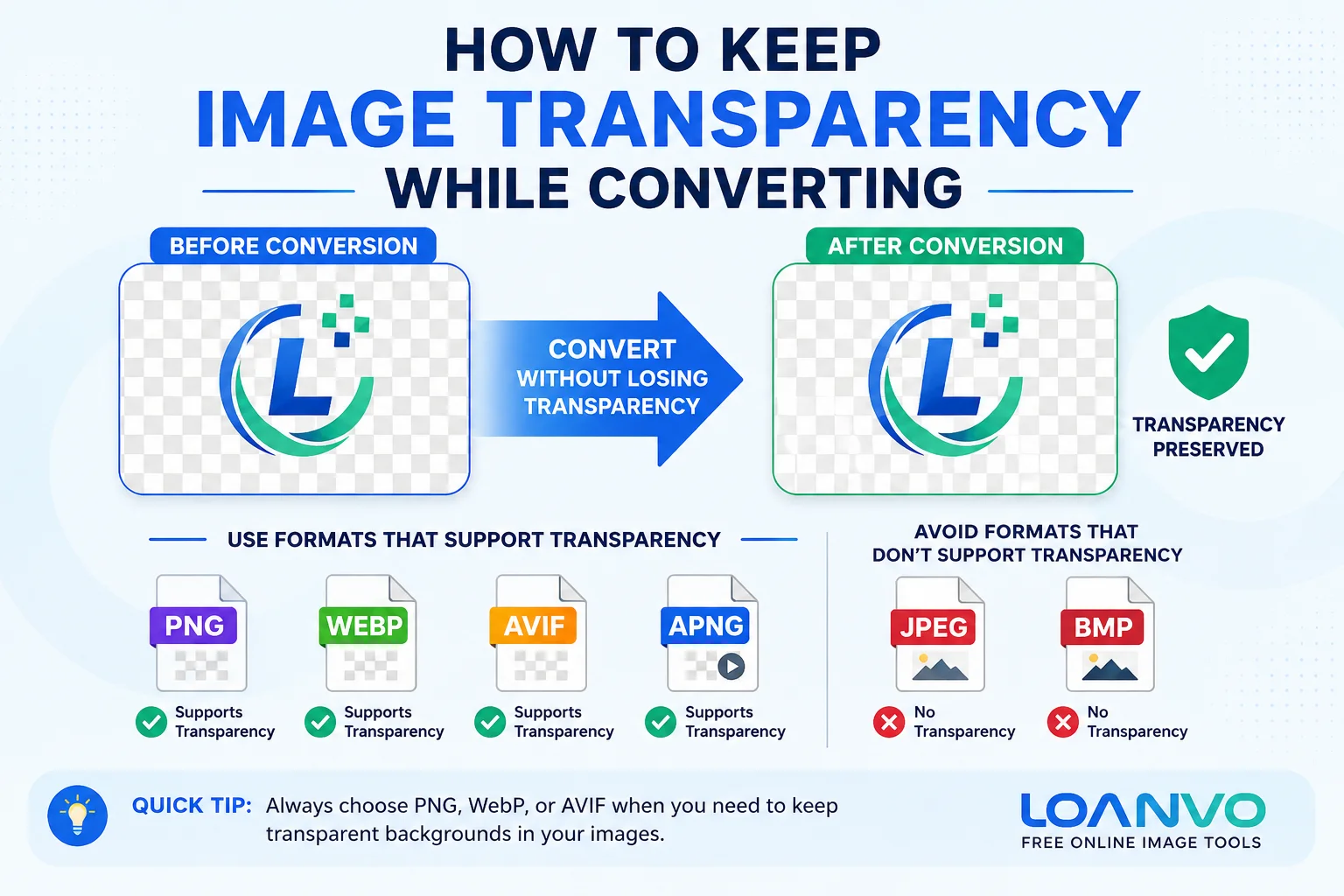
Have you ever converted a transparent PNG logo into another format, only to find that the background suddenly became white or black? This is one of the most common image conversion problems, especially for beginners.
Whether you're creating a website, designing a logo, editing product images, or preparing social media graphics, preserving image transparency is important for achieving a clean and professional appearance.
The good news is that keeping transparency during image conversion is simple once you understand how different image formats work. In this guide, you'll learn what image transparency is, which file formats support it, common mistakes to avoid, and how to convert images without losing transparent backgrounds.
What Is Image Transparency?
Image transparency allows certain parts of an image to remain invisible, making only the visible object appear on the page.
For example:
- A company logo without a white box around it
- Website icons that blend naturally with any background
- Product images placed on different colored webpages
- Digital stickers and illustrations
Transparency is stored using an alpha channel, which records how transparent each pixel is. Unlike simple on/off transparency, alpha channels can also create smooth edges and semi-transparent shadows. PNG, WebP, and AVIF all support alpha transparency, while JPEG does not.
Why Does Transparency Disappear After Conversion?
Most transparency problems happen because the selected output format doesn't support transparent pixels.
For example:
| Original Format | Converted To | Result |
|---|---|---|
| PNG | JPEG | White or black background |
| PNG | PNG | Transparency preserved |
| PNG | WebP | Transparency preserved |
| PNG | AVIF | Transparency preserved |
When converting a transparent PNG to JPEG, the converter has nowhere to store transparent pixels because JPEG simply doesn't support an alpha channel. As a result, transparent areas are filled with a solid color, usually white.
Which Image Formats Support Transparency?
Not every image format is designed for transparency. Choosing the right format is the most important step.
| Format | Transparency | Best Use |
|---|---|---|
| PNG | ✅ Yes | Logos, icons, graphics |
| WebP | ✅ Yes | Websites, web graphics |
| AVIF | ✅ Yes | Modern websites |
| APNG | ✅ Yes | Animated graphics |
| JPEG | ❌ No | Photographs |
| BMP | Limited | Basic bitmap images |
Modern formats such as WebP and AVIF support transparency while also providing much better compression than PNG for many images.
PNG: The Traditional Choice
PNG has been the standard format for transparent images for many years.
Advantages include:
- Lossless quality
- Full alpha-channel transparency
- Sharp edges
- Universal browser support
- Excellent for graphics
PNG is ideal for:
- Company logos
- Website buttons
- App icons
- Stickers
- UI elements
- Screenshots
Since PNG uses lossless compression, saving the image multiple times does not reduce image quality. However, PNG files can become relatively large compared to newer formats.
WebP: Smaller Files Without Losing Transparency
WebP was developed by Google to reduce image sizes on websites.
Benefits include:
- Supports transparent backgrounds
- Available in both lossy and lossless modes
- Smaller files than PNG
- Faster website loading
- Supported by all modern browsers
Google reports that lossless WebP images are around 26% smaller than PNG, while transparent lossy WebP images can often be several times smaller than equivalent PNG files.
For most websites, WebP is one of the best choices for transparent graphics.
AVIF: The Modern Alternative
AVIF is one of the newest web image formats.
It provides:
- Transparency support
- Excellent compression
- High visual quality
- Smaller files than JPEG and often smaller than PNG
AVIF is becoming increasingly popular because it helps websites load faster while maintaining excellent image quality.
Why JPEG Removes Transparency
JPEG was designed for photographs.
It reduces file size by compressing image data but does not include any support for transparent pixels.
If you convert:
PNG → JPEG
the transparent background must be replaced with another color because JPEG cannot store transparency information. This is why logos converted to JPEG usually appear inside a white rectangle.
How to Keep Transparency During Image Conversion
Follow these simple steps to preserve transparency.
1. Start With a Transparent Image
Your original image must already contain transparency.
If the image already has a white background, conversion alone cannot make it transparent.
2. Choose a Supported Output Format
Use one of these formats:
- PNG
- WebP
- AVIF
Avoid JPEG whenever transparency is required.
3. Enable Transparency Settings
Many converters include options like:
- Preserve Alpha Channel
- Keep Transparency
- Transparent Background
Leave these enabled whenever possible.
4. Don't Flatten Layers
Some image editors flatten all layers before exporting.
Flattening replaces transparency with a background color.
Keep transparent layers intact until export.
5. Preview Before Downloading
Always preview the converted image.
If the background appears as a checkerboard pattern, transparency has been preserved successfully.
Common Mistakes to Avoid
| Mistake | What Happens | Better Choice |
|---|---|---|
| PNG → JPEG | Transparency lost | PNG, WebP, AVIF |
| Flattening image | Background becomes solid | Keep transparent layers |
| Wrong export settings | Alpha removed | Enable transparency |
| Starting with white background | White stays | Remove background first |
Avoiding these mistakes saves time and prevents unnecessary image editing later.
Which Format Should You Choose?
Different projects require different formats.
| Use Case | Recommended Format |
|---|---|
| Company Logo | PNG or WebP |
| Website Icon | WebP |
| Product Image | PNG or WebP |
| Transparent Illustration | PNG |
| Website Graphics | WebP |
| High-Speed Websites | AVIF |
| Photographs | JPEG |
For websites, WebP often offers the best balance between quality, transparency, and file size. PNG remains an excellent option when maximum compatibility or lossless quality is required.
Convert Transparent Images Easily with Loanvo
Need to convert transparent images without installing software?
Loanvo offers free online image conversion tools that work directly in your browser. Whether you're converting PNG to WebP, PNG to AVIF, or changing between other supported formats, you can quickly convert images while preserving transparency whenever the selected output format supports an alpha channel.
If you're optimizing images for websites, choosing WebP or AVIF can also help reduce file sizes and improve page loading speed without sacrificing transparent backgrounds.
Best Practices for Transparent Images
To get the best results every time:
- Keep the original transparent image as a backup.
- Never convert transparent logos to JPEG.
- Use PNG for editing and design work.
- Use WebP for websites to reduce file size.
- Use AVIF where supported for maximum performance.
- Preview converted images before publishing.
- Test images on both light and dark backgrounds.
Following these simple practices helps ensure that logos, icons, and graphics always look clean and professional.
Frequently Asked Questions
Can JPEG support transparent backgrounds?
No. JPEG does not support transparency. Transparent areas are replaced with a solid background color.
Which format is best for transparent logos?
PNG is the safest choice for compatibility, while WebP is ideal for websites because it offers smaller file sizes with transparency support.
Does WebP keep transparency?
Yes. WebP supports transparency in both lossless and lossy modes.
Is AVIF better than PNG?
For many web use cases, AVIF provides much smaller file sizes while maintaining high image quality and supporting transparency.
Conclusion
Keeping image transparency while converting is easy once you choose the correct output format. PNG, WebP, and AVIF all support transparent backgrounds, while JPEG does not. By understanding how transparency works and avoiding common conversion mistakes, you can preserve clean, professional-looking graphics for websites, presentations, apps, and marketing materials.
Whether you're working with logos, icons, product images, or digital artwork, selecting the right image format ensures your transparent backgrounds remain intact while maintaining excellent image quality and optimizing file size.